Technology Home Audio, Video & Integration: 06/01/2009 - 07/01/2009

Monday, June 15, 2009

Projector Geometry... Very Important!

You may be thinking of getting yourself a fancy new projector to get a 120” TV. I cannot stress enough to not go forward with your project without knowing exactly what you’re in for! There are many things you need to know about projection geometry if you wish to be happy with the end result. Here are the basics of what you need to know!

Throw Distance: Is the distance the projector needs to be away from the screen surface “Not the wall”. You need to know how large you want your screen to be so picking a number and sticking with it always best practice. It is important to make this decision before ever looking at projectors as you will only waste your time if you don’t. Most projectors have a zoom feature so your throw distance will be a range “lets say 9 feet to 12 feet for example” This means the front of the glass lens on the projector needs to be a minimum of 9 feet away to a maximum of 12 feet to fill the desired size screen you’ve selected. This range will change drastically with different screen sizes and every projector will be completely different. It is very important that you remember that the placement of the projector is always from the center of the glass lens regardless of the shape / size of the projector as a whole. The throw distance for every projector will be different so finding one that suites your needs can be tricky depending on how small the room is. The bigger the room the more flexibility you will have with your selection.

Vertical Offset: A lot of projectors are designed to sit on a flat table and not hang from the ceiling. You can still mount these projectors on the ceiling but there are a couple of things to be aware of. With these projectors the bottom of the screen is usually higher then the table. These projectors have an offset of more then 100%. Look at the images below to get an idea of what vertical offset is. If you do end up getting a projector with vertical offset you may run into trouble because the image may shoot downwards too far when mounted to the ceiling. You may be forced to build the projector into the ceiling, lower the height of you screen too low or use a smaller screen altogether. It’s usually safest to get a projector that has exactly 100% vertical offset in a residential setting unless you really know what you are doing. If you get a projector with 100% vertical offset all you need to do is make sure your projector is mounted so that center of the projectors glass lens is the same height as the top of your screens white projection surface. Once again see picture below to get a better idea of what I mean. The image on the bottom shows a projector with more then 100% offset.


Horizontal Lens Offset: Projectors aren’t always square in shape and don’t always have the glass lens in the center of the casing. Most of the time a projector is rectangular in shape with the lens off to one side. Make sure you offset your projector mount so that the center of the projectors glass lens lines up with the center of your screen. If you don’t take this into consideration you might mount the projector too far to the right and end up needing to rotate the projector on the mount to aim it left. Your geometry is now way of because the lens isn’t perpendicular to the center of the screen and you will have a very bad keystone “Read Keystone”. The same thing will happen if it is mounted too low or too high.

Lens Shift - Vertical & Horizontal: If the projector you chose just so happens to have this really nice feature you might save yourself some headache. Lens Shift physically moves the whole image left, right, up or down. Some projectors only have one of the two types of lens shit while others have both. Most projectors never come with this feature and you usually pay a premium for it. Let’s say you’ve mounted your projector to high or maybe too far to the right. With lens shift you can simply turn the dial and shift the entire image down or left without having to worry about the image being keystoned. If you want your projector to be right up against the ceiling but want your screen to be lower this becomes a very useful feature. In this case you could use a projector with some vertical offset that shoots the image on a slight downward angle but be cautious with this and make sure you triple check your measurements before actually buying or mounting the projector. If you are looking at a projector with lens shift capabilities make sure you find out how many inches of movement you will get to have an idea of where the screen will need to be.

Keystone: Is what will happen if your projection geometry is off in any way. The image will not be square and will not fit the screen properly. Most projectors come with a keystone correction setting in the menu. This doesn’t solve the problem and the projector is simply processing the image and reformatting it to look square. You will end up loosing some detail because some of the dots “Pixels” are not being used. Make sure to follow the information above and you should be able to avoid this unpleasant experience.

Friday, June 12, 2009

720p VS 1080p

High Definition TV’s are a wonderful thing but what is the difference here? They are both high def right? No they are so far from being equal the whole VS part of my title is pointless. Let’s break them down to get a better understanding of what is going on. I stated in an earlier post that a pixel is a single dot on your screen. Hundreds of dots all put together makes up the image on your TV but how many are there is the question?

The resolution of 720p in a matrix/grid format is 1366x768. You could think of it as rows and columns "1366 columns and 768 rows" which comes out to 1,049,088 little dots on your TV all working together to make the image that you see.

The resolution of 1080p is 1920x1080 which comes out to 2,073,600 happy little dots. As you can see 1080p has twice as many dots to create your picture so naturally we have a very “clear” winner.

However is the extra cost worth it?

In my experience it would depend on how big the TV is that you are going to be purchasing. As a TV gets larger… So do the little dots. With a 65 inch TV the dots are almost twice the size of a 37 inch TV’s dots. When you get down to 32 inch or smaller the dots are so small that you may never really see the quality difference enough to care. You might be able to see it in a side by side comparison but not enough to justify the extra cost. It’s when you get into the 65 inch TV’s or 125 inch projected images that the difference is extremely noticeable.

In the end it will be completely up to you to make the decision but I’ve always been one to say go big or go home when it comes to TV's. In conclusion I wouldn’t suggest going with 1080p for anything under 40 inch. A 37 inch might be a bit of a toss up but I'll have to leave the decision up to you!

Note: It's important that I make it clear that 1080p and 1080i are not the same thing and to always make sure that whatever TV you're looking at is "NATIVE" 1080p. Native means the TV naturally does 1080p without using any special electronics that simply accept a 1080p signal but then reworks it to fit the TV. This happens a lot with 720p TV's that sales reps try to spin off as 1080 high def because they are 1080i capable. The "Native" would still be 720p "1366x768" so make sure you check and make sure that the "Native = true amount of active dots" matches what you are actually looking for.

Thursday, June 11, 2009

Expensive Cables “Monster” VS Reasonable Ones

You’ve all looked at the prices of high end audiovisual cables in stores like Best Buy and Future Shop costing up into the high $100’s. Is the price worth it and do you get any extra benefit for throwing your money away? I would have to say no and that I’ve made cables of my own that perform just as well if not better! Once again we need to go back to the difference between Analog and Digital signals.


Analog Signals: An analog signal is a little tricky simply because there are a lot of factors that come into play contributing to the overall performance and signal quality. Here are some to think about.

Length of the cable
The longer the cable is the harder it will be for an analog signal to reach the other end. A nice short cable could be compared to a car driving along as normal but if you start pressing the breaks “Resistance” the car slows down. The same thing happens to your signal when using longer and longer cables. The longer the cable is the more resistance there will be and can make it very hard for your signal to reach the other end without degrading.

Quality of the connectors
The connector can also play a role in how well a signal can make it through the cable based what the resistance value is of each connector. Remember that you have a connector at each end and they both add some resistance to the puzzle.

Quality of the termination
Most cables have their ends put on “Terminated” by an automated assembly line but what counts here is the quality of the strain relief that was used. The strain relief helps the cable to stay attached to the connector longer. An example would be pulling on the cable instead of the connector to unplug it. The strain relief helps to take some of that force off of the very delicate “Soldered” joints. This said even the type and quality of solder used can factor into the overall performance of the cable.

Induction “Unwanted noise making its way onto your cable”
This can be caused simply by running your AV cables too close to power lines. Power gives off a 60 hertz hum that can be heard in your speakers or sometimes you’ll even see it on your TV screen.

In my opinion if you are buying short 10ft cables and are able to keep them away from your power “You can cross over a power cable but never run along beside” then I would say there is no reason for you to go out and buy “Monster” cables. You will not notice any bit of difference in the picture or audio quality. I would recommend buying brand name cables of some sort to get a respectable build quality but as for “Monster” the expensive brands they are all marked up 70% above wholesale and only god knows how much they are marked up from the manufacturer.


Digital Signals: This type of cable is much easier to talk to because a digital signal either works or it doesn’t. There is no unhappy middle where the quality of your picture or sound has degraded to the point where it’s unbearable. HDMI for instance has a specific minimum standard that all manufacturers have to follow to carry the HDMI certification. If you were to buy a certified 25ft HDMI cable from Tiger Direct for $30 it would perform just as well as a 15ft cable from “Monster” for $120. No consumer would ever be able to tell the difference and no hardcore video boys would see a difference without some fancy testing equipment. When it comes to digital signals do not under any circumstances waste your money on high end “Monster” cable types. Unless however you enjoy wasting your hard earned money in harsh economic times!


Stay tuned for my next post!

Wednesday, June 10, 2009

RSS Hugger Review

I have been submitting my blog to various RSS feed sites to help spread the word about my blog. The best one that I have found so far is www.rsshuger.com

Their site is very clean and user friendly and has over 4300 RSS feeds to choose from. It's rather easy to have your site added to their database and I would recommend their service to anyone looking to get their blog noticed or just simply interested in viewing other peoples blogs.

What more can I say... Check it out for yourself at www.rsshuger.com

What makes a home Smart?

You may hear this being called a couple of different names “Integration, Smart Home, Automation, etc…” A lot of builders are claiming that their homes are wired for the future or Smart Wired. I have a very big problem with this because it’s not true in any way. What builders do is a form of Structured Cabling and usually has little to do with home automation. If you were to do a full blown automated smart home you would far more wires to be run through your home on top of what the builder ran.

Imagine having every system in your home “HVAC, security, home theater, lighting, drapes and appliances such as your garage door opener” all wired into one main control processor to allow them to communicate with one another. Anything you want could become a trigger that automatically causes whatever event “your imagination can come up with” to happen. Here is an example:

You sit down to watch a movie and hit play on your wireless touch panel. The TV turns on, the movie begins to play, the drapes close, and the lights fade out. All of this takes place automatically with the push of a single button. Let’s assume you are watching your movie and need to pause it to hit up the bathroom. You press pause and the lights automatically turn back on to a comfortable setting that doesn’t blind you. Perhaps it is the doorbell that triggers the movie to pause in which case the system could change the input on your TV to display a security camera for the front door. You could choose to ignore it and press play again or since the security system is tied into your touch panel you could unlock the front door and let them in with the push of another button.

In any case what you can make a Smart Home do is usually limited by two things “Money and Imagination.” New technologies are always emerging that make it much more affordable for average people but it will still be a number of years before a concept like this becomes affordable enough to consider.

Keep an eye out for my next Integration topic “Z-Wave” and how it will cut the cost of smart home integration significantly

Tuesday, June 9, 2009

What Is Wattage?

Wattage is a confusing term that tells you how much “Power” an amplifier or speaker can handle. Obviously the bigger the number the better and louder your system is going to be. However there are three different measurements of Wattage and some manufacturers play on the fact that you don’t know what they are or the difference between them. I would love to change this fact and give you a chance to see through the marketing propaganda

Like I said… There are 3 types of wattage and below is a graph of a standard sign wave to illustrate how these measurements are taken


Peek to Peek: Is double the value of Peek because the measurement is taken from the low negative value to the high positive value. If an amplifier is rated in either of these first two it is basically telling you the maximum load the amp can handle for a very short time.

RMS: Tells you the maximum wattage a system can handle continuously without being damaged. This is the number you should be looking for and will give you a much better idea how powerful your system will truly be!

Example – A 1000watt amplifier measured in Peak to Peak would actually be only 500 watts Peak. Manufacturers will use this to their advantage to make their amplifiers look better then they really are. They aren’t lying to you because it’s a “Type” of wattage but they aren’t really telling you the truth either.

Make sure that when you are comparing audio gear you always find out what the ratings are measured in before making the purchase. Ask the sales rep to help and if he can’t give you an answer I would suggest purchasing from someone who knows what they are talking about and not just trying to make a commission!

Friday, June 5, 2009

What are all of these cables and which one does what? - Part 2

Analog Cables

There are a few different types of connectors used for this signal type. Even though the connectors look different the signal can be the same.

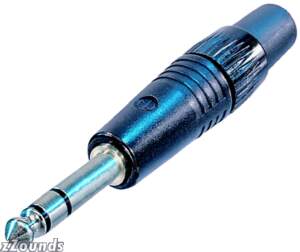
6.35mm - 1/4 inch: This connector is not commonly used by Home Theaters but you may see it along the way and wonder what it is. It is the largest type of Stereo Audio connector that you would see in the home environment. This connector is still used to hook up a guitar or certain microphones to a sound system.


3.5mm - 1/8 inch: This is one of the more common cable types that you will see around the house. It is used by computers to send the sound to your speakers, almost all MP3 players "IPOD" and some cell phones. This connector is much smaller and was given the nickname Stereo Mini because of how much smaller it is compared to the much larger 1/4" version.


2.5mm: This connector looks the same as a Stereo Mini but is about half the size if not smaller. This connector is used in a lot of cell phones to help make phones smaller. The signal going through this type of cable and connector is usually a bit different in most cases. Usually there is only one ear bud with a microphone attached to allow you to talk hands free. Some models give two ear buds with a microphone as well. This connector can vary a fair bit from one phone to the next so make sure you do some research on what type you have.


RCA - Red & White: The two RCA "Red and Black" connectors are the most common type you will see in every home theater setup. The color code is always red and white and carries the Left and Right sound for stereo audio.


Adapters

RCA to Stereo Mini If you wanted to hook a laptop / computer up to your TV for streaming a You Tube video, Movie or TV Show you will need one of these adapter cables 99% of the time. The output of your laptop will be a Stereo Mini and the input to your TV will be the Red and White RCA ports. Although on some LCD and Plasma TV's you may actually be lucky enough to have a Stereo Mini jack. Since the signal is the same the connector type does not matter which is why an adapter cable will always work..


Stereo Mini to 1/4: There are hundreds of different adapters that you can use to accomplish what you are trying to do and this is just an example of one. You would use this type of connector if your receiver had a 1/4" headphone jack but you wanted to plug in standard IPOD "Stereo Mini" headphones. Once again the signal is the exact same so an adapter will work.


Digital Cables

Digital Coax: This cable also uses the RCA type connector but the signal being sent over the cable are completely different. With a digital connection the amount of information that can be sent over a cable is far more then analog. This one cable will carry your full 5.1 to 7.1 surround sound from the device "DVD Player" to your receiver.


Fiber optic: Fiber is able to send a signal much farther and faster then standard copper wire. There are two different types of fiber cables "Glass and Plastic." For residential purposes you will be using plastic fiber cables. Glass would be used outside the home to carry a signal for many miles. Be very careful with any type of fiber as it is very brittle and easily broken if stepped on or kinked in any way. You can test a fiber cable by shining a flashlight down one end of the cable and looking at the opposite end. I would recommend doing this when you first get the cable out of the packaging to get a good idea of how bright it should be. If the cable stops working and you try this test again the light will be significantly dimmer if the fiber is damaged at all.


General Audio / Video Cabling Tip

Video cables are not the same as audio cables. The cables and connectors can all look the same but they have different specifications for the two applications. You should never use a video cable for audio or an audio cable for video.

What are all of these cables and which one does what? - Part 1

The picture to the left does a good bang-up job of depicting what most people see in their mind when thinking about the mess of wires behind all of their audiovisual equipment. Just trying to figure out which cable goes where and what each one does can be a gruelling thought for most folks. The good news however is that all of the plugs on today's residential equipment are all color coded to match the wire you’re trying to plug in. Keep in mind color coding may not apply if you are purchasing some high end or custom cables but is always present on the equipment ports. Let’s take a look at each type of cable from the worst to best quality.

There are two different types video of signals that need to be understood before we continue. Analog is the first and most common type of signal used today. Analog video is made up of 5 key components "Red, Green, Blue, Horizontal and Vertical Sync." I will refer to this as RGBHV for the rest of my post. The second type "Digital" is gaining more popularity every day with HDMI and DVI cables.


ANALOG Video

RF Cable: This is the most common type of cable that plugs directly into your television when hooking up basic CableTV and uses an F-Connector. It has the worst picture, sound quality and has all 5 signals "RGBHV" compressed onto one wire including left and right audio. As a video signal is compressed the quality of the picture will always go down. This cable and connector type is also used to hook up internet cable modems and digital cable boxes. The cable and connector looks the same but for these two applications there is a completely different signal being carried so don’t confuse it with the video in your home theater.

Composite Cable: This cable uses an RCA connector and is always yellow in color. It also has RGBHV compressed onto a single cable but the stereo audio has been taken out. The same connector is used for several different signal types but yellow is the only color used for composite video. The plug on the back of your equipment will also be yellow.

S-Video: This connector usually has no color coding other then black but is the only connector that looks like this used in home theaters. S-Video is less compressed and the "RGBHV" signal is broken up between two wires. Keep in mind a cable can only be called a cable if it has more then one wire inside of it. It could have two wires or it could have twenty-four wires and still be called a cable.


Component Video: Uses the same RCA connector as composite video and due to the name can be easily confused. Component video in a home theater setting is what I would recommend using at the bare minimum. Try not to use any of the ones before this unless you are out of input jacks and are forced to. Component video has RGBHV split up onto three wires instead of two. The red wire carries the red portion of the picture, blue is on blue and green is on green. The "HV" portion of the "RGBHV" signal is compressed onto the green wire and this is why you can plug in green by itself and still get a picture. If you were to plug in red or blue alone nothing will show up. This cable can support high definition at 720p but should not be used for 1080p. If you plan to use 1080p be sure to use the HDMI cable further down.

VGA aka RGBHV: The blue VGA cable is used by most if not all personal computers and carries each of the RGBHV portions on separate wires inside the cable. No compression takes place on this cable and should be used whenever possible if you have to use an analog signal. The only place you will find this connector in a home theater is directly on the back of your TV if it is supported. The connectors standard color code is blue for both connectors and equipment ports. The thickness of this cable type is very important depending on its length and the resolution setting of the computer. Newer computers have very high resolutions "1680x1050" vs older resolutions such as "800x600." The resolution tells you how many dots are on the screen in a matrix format. Multiply 800 by 600 to get 480,000 which is the total amount of dots available to create the detail of an image. Make sure to get a thicker cable if you’re using a higher resolution "1280x720" and for long lengths "30 feet or more".


Digital Video

DVI Cable: Is replacing VGA in the computer world for personal computers and is gaining popularity. Once again this is a completely uncompressed video signal but since it is digital it will either work or it won't. A digital signal doesn't degrade quite the same as an analogue signal and the picture is better / far more reliable. If your equipment supports this type of cable always use it over VGA when possible. The downside is the limitation on the length of your cable vs the cost to overcome it. A good point to note is to never buy "Monster" anything for digital cables. You can buy a more affordable 25 foot DVI cable and get the exact same picture quality. Like I said "Digital either works or it doesn't." I wouldn't recommend buying the cheapest cable you can find as you still want it to be well made as far as reliability goes but there is no need to pay double for "Monster" cables when there is little to know added benefit.

HDMI Cable Is replacing component as the new standard in high definition home theater systems. HDMI like DVI is also a completely uncompressed digital signal but also carries audio as well. DVI for the most part doesn't carry audio but I have heard some new hardware is starting to support this feature. HDMI has the same distance limitations as DVI and they are very compatible with one another. If your laptop has an HDMI output but your monitor has a DVI port you don't need to worry. You are able to buy a cable with HDMI on one end and DVI on the opposite. They also sell tiny converters that you can pop onto the end of either type to get the connector you need.

Stay tuned for the second half of this post tomorrow and I will cover the different analog and digital cables for audio.

Thursday, June 4, 2009

Comparing TV's In A Showroom

When wondering through a showroom floor there are a couple of tips to remember before making your final decision on a TV. As you can see from the picture the TV on the left seems to look like the nicer image but in fact it may not be the better of the two. When manufacturers make their displays they will all have different factory default settings. These settings include contrast, brightness, hue, tint, etc... and they all affect the overall picture quality. Others will set them up so they look best once you get them home making it easier for the buyer to get it setup with a good picture. The problem is when the displays are setup for the home they will look poor in the showroom. Knowing this you need to try not to judge too harsh when looking around a showroom. You should mainly be making your decision based on comparing the specifications of the different displays. There are many specifications to compare and this can be confusing so stayed tuned for my next post.

Wednesday, June 3, 2009

Which TV is best for me?

This is a question that you may find asking yourself on the quest for a new TV. There are many different display technologies to choose from and it can quickly get confusing when looking at all of the terminology used.

- LCD
- Plasma
- Front Projection "LCD or DLP"
- Rear Projection DLP "LED or Laser"
- OLED "Organic Light Emitting Diode" Future Technology

Each of these technologies have different features and benefits that you may want to consider. To find the one which caters best to your needs I would suggest sitting down and clearly defining / prioritising what you will be using the display for. Here are some examples:

  1. Watching Movies and TV Shows
  2. Using the display as a computer monitor
  3. Games "XBox, PS3, Wii"

Each of the above examples has different pros and cons to consider when you put them up against the various technologies. When watching Movies or TV Shows it will depend on what type of programming you watch the most. If you watch a lot of sports and action movies you will want to consider Plasma for its ability to reproduce high speed motion more smoothly. Plasma is also able to recreate a better overall cinematic experience due to its higher contrast ratio capabilities "blacks are really black and whites are really white."

If you plan to hook your computer up to the display as it's always fun to have a 50" computer monitor you will want to consider LCD for its ability to display crisp and clear static images from your computer without any flicker or burn in. You may hear that the problem of burn in on Plasma’s has been solved but don't buy into this lie. The solution is called a white wash that removes any burn in but destroys your contrast ratio. This means that you blacks begin to look very Grey and your TV will look very poor in a couple of years. New solutions are emerging but it is too early to guaranty if the problem has been improved.

When playing games from a console it’s a bit of a toss up. You could consider going both ways but just understand the pros and cons of both. Kids are known to put a game on pause and walk away for hours at a time which will be a bad idea for plasma. On the other hand for most games it's now more like playing a movie where the demanding graphics take full advantage of Plasma’s ability to reproduce true blacks and fast moving images. Depending on who will be using the display will determine which one to go with.

Front Projection: This technology is great for the person that feels that size is the only thing important. For a true cinematic experience nothing does it quite like a 120" screen. Keep in mind that the more affordable projectors under $1500.00 usually sacrifice 1 of the 2 important features. If you want high definition at an affordable price you will sacrifice greatly on the brightness of the projector. If you need a bright projector then you will be sacrificing the resolution "High Definition" If you do decide to get a projector here are some things to think about:

  1. Lighting: It would be ideal to have the ability to control the lighting in the room with black out blinds or even use a room with no windows. Ambient light significantly washes out your image and makes it difficult to see. If you have no control over the light in the room I would not recommend getting anything under 2500 lumen. If you do then you could drop down to a 1200 - 1500 lumen projector and still be happy.
  2. Lamp: Most lamps are able to reach 2000 hours of use before needing to be replaced. A great deal of projectors have an economy mode that will extend the life by another 1000 hours but you will loose some brightness so if this is a feature you are looking at make sure you can spare to loose some. You also want to check the price of replacement lamps as they can range from $250 to $600.
  3. DLP: I would recommend a DLP projector due to its versatility in being able to handle both static computer images and high action cinematic. This technology is used in high end digital cinema projectors in a great deal of movie theatres.
  4. LCD: You may find this type of projector to be more affordable and honestly if price is a concern you probably won't notice the difference unless you do a side by side comparison.
  5. Screen: In most cases you are projecting onto a white surface in which case your Blacks will be the absence of light. This is why the image will begin to look washed out with too much ambient light in the room. The absence of light doesn't exist because of the light coming through your windows. Also as the screen size gets larger so do the individual dots that make up the image "Pixels".

Rear projection DLP: This technology has come a long way since it was first released. Many stores do not carry this type of display any more due some of the problems they once had and the bad rep that followed. However with the advancement of Light Emitting Diodes and Laser technologies all of the problems are no longer around but the bad rep still lingers. With old rear projection displays you would still have to change the lamp every so many hours just like a regular projector. DLP technology in general also had a big point of failure called a Color Wheel. The color wheel spun at high speeds on bearings which over time wore out. By using 3 different LED's or Lasers "Red, Green and Blue" both the color wheel and the lamp have been eliminated all together. This advancement has increased the contrast ratio, color accuracy and overall life span of the display to surpass both Plasma and LCD. The only drawback to this great technology is the thickness of the display. It is still not able to compete with LCD or Plasma but the thickness has definitely come down significantly. If you want a very large screen, at a very low price and the best picture quality then the thickness shouldn’t matter. If you don't have any intentions of hanging the display on your wall then there shouldn't be any complaints.

OLED: is a new technology from Sony that will have the best of all worlds. It will be millimetres thin, have the best color accuracy, the best contrast ratio will far surpass any other technology. This is a technology defiantly worth keeping your eye on in the years to come.

Stay tuned for my next post!

Who Am I?

My name is Mike and welcome to my blog. Let me give you some background of my experience in the Audio/Visual field. I started off with a college course in Ontario called Home and Building Automation which laid out a solid foundation to move into the workforce. After I graduated I started working for a large audiovisual company installing audio/visual solutions for large corporations, schools and hospitals. Near the end of my five years with the company we were tackling large "NASA Style" control rooms, High Definition systems for hospital operating rooms and some of the most advanced video conference rooms to date.

I now work for one of the large banks as a senior audio/visual consultant and now have a total of 8 years of experience in this industry. The goal of this blog is to make straightforward articles that will hopefully help you in making tough AV decisions.

Thanks for taking the time to read my posts and be sure to keep checking back.
Technology Top Blogs